Midway Editor
Add catalog objects and buildings, adjust position, rotation and scale, and manage scenes and deletion lists. Only you see the local preview. Other players see changes after successful server publication. Support for individual object types depends on the current SCUM build.
Download from accountObjects in the game world
In-game screenshots provided by NeDjin. Select an image to open the original.
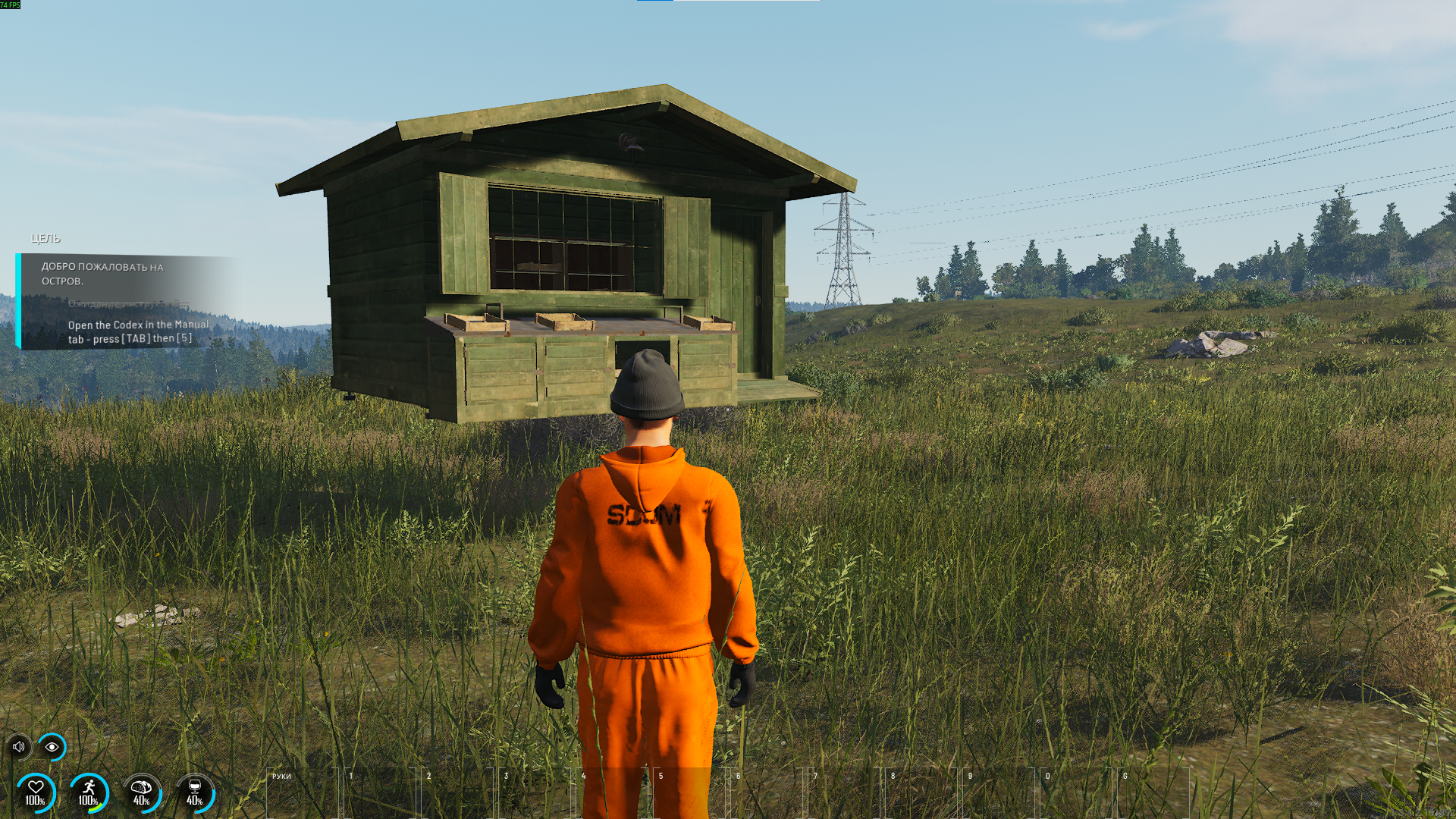

Editor interface
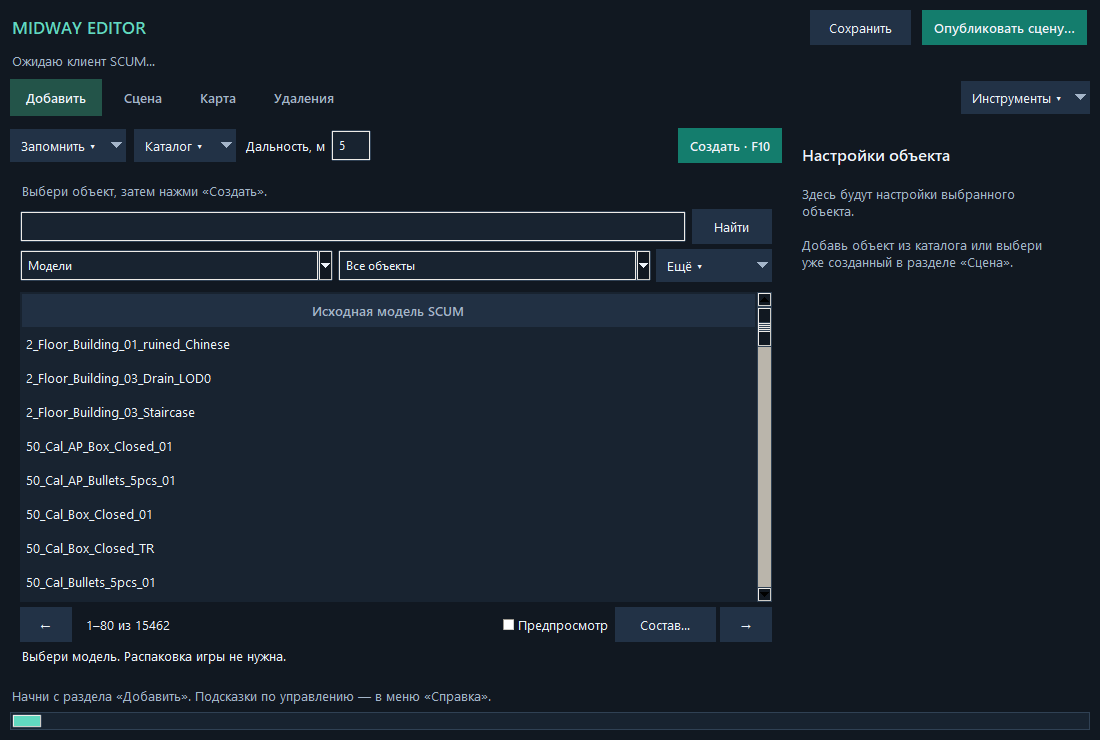
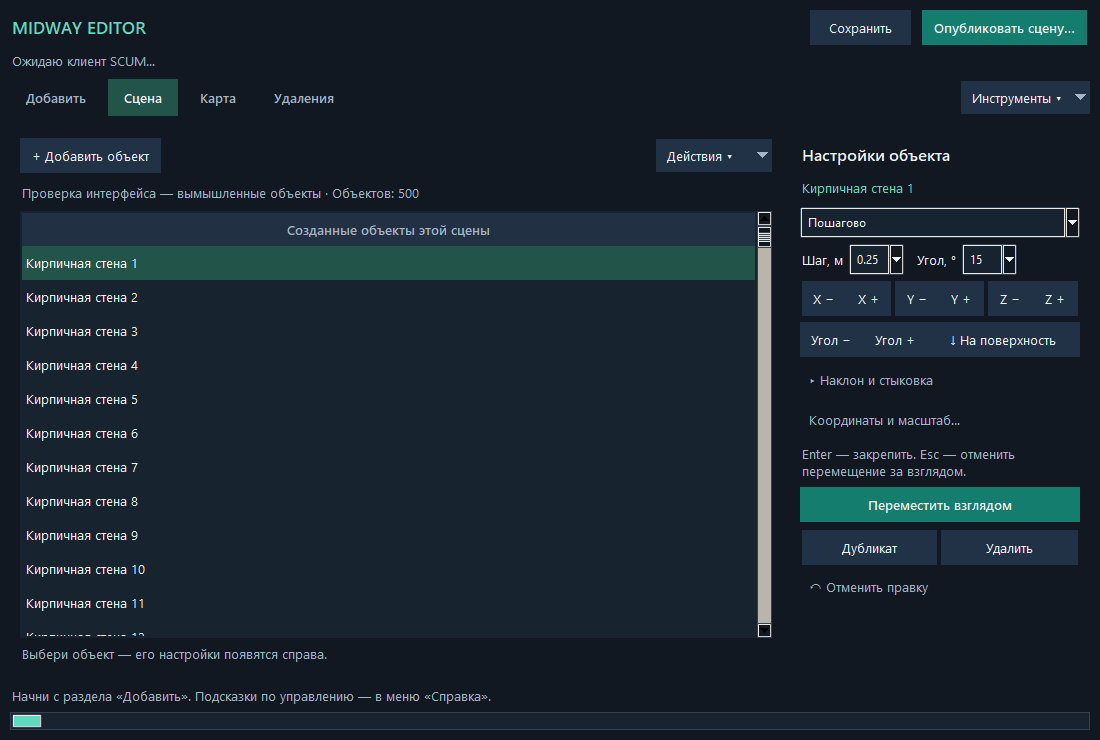
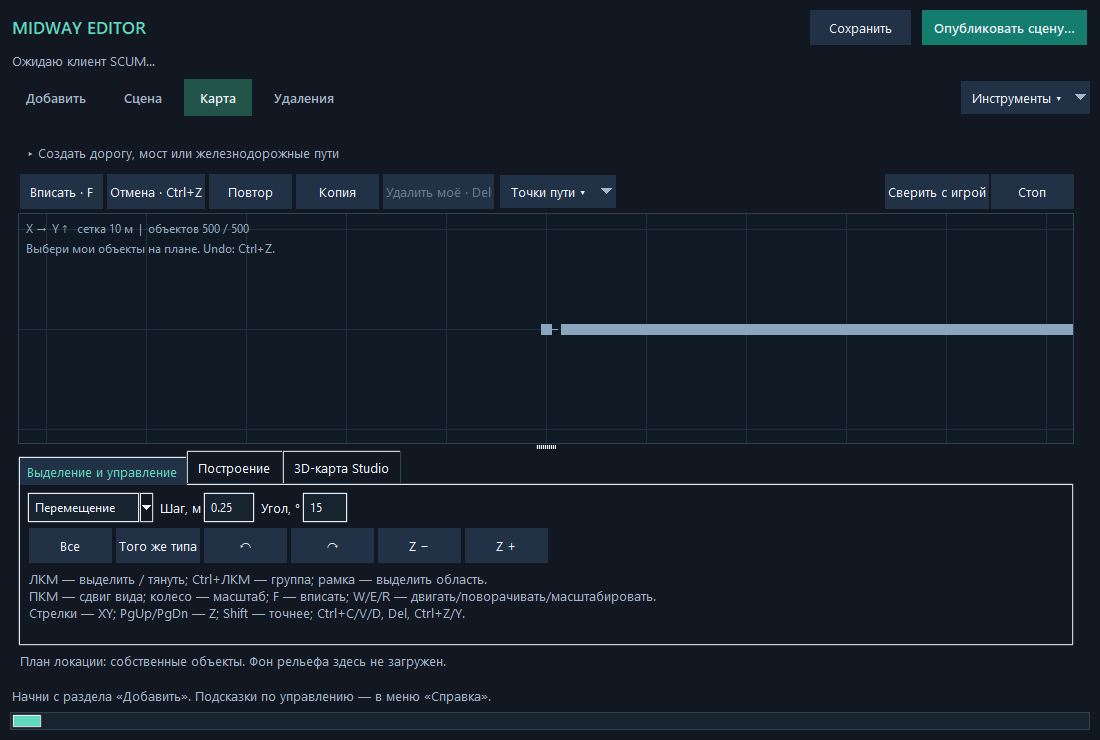
What Midway Editor does
Add catalog objects and buildings, adjust position, rotation and scale, and manage scenes and deletion lists. Only you see the local preview. Other players see changes after successful server publication. Support for individual object types depends on the current SCUM build.
Registration and a free month
Promotion: 22 October–22 November 2026 inclusive, Samara time (UTC+4). Register without a key and enter your server name, address and game port. Receive one free SCUMNED key for both the panel and editor, activated immediately for 30 days. No free keys are issued after 22 November. One promotion per account; reinstalling does not extend it. Paid SCUMNED keys renew access. Navigator is free with separately sold premium keys. No automatic charges.
Windows, VPS and hosting options
For a local Windows server or an RDP VPS, select that method in your account. Enter the administrator SteamID and dedicated TCP port, download and extract the personal server ZIP, then run Install-Server.cmd. The wizard checks the dedicated server folder, build and files and reports completion to the website. Choose the SCUM client folder separately on your gaming PC; different drives are supported. For hosting without desktop access use FTP, FTPS or SFTP in your account. A file manager alone cannot confirm installation: request FTP/SFTP access from the host. Linux/Wine, Docker and Pterodactyl require a compatible Windows environment, DLL permission and a dedicated port; compatibility is not automatic. Existing third-party loaders are not merged. After confirmation, extract the personal client ZIP fully and run MidwayEditor-Setup.exe.
Your subscription server
In your account, select your server and enter FTP, FTPS or SFTP access and the administrator SteamID. Check the target first; before writing, confirm that the server is stopped and backed up. After file readback, download your personal ZIP, extract all of it and run MidwayEditor-Setup.exe in that folder. Authorization is bound to the selected server and renews automatically while the subscription is active. This edition cannot edit another server. Multiple owned subscriptions use separate installations and project folders. Grant character access through your server’s SteamID list. NeDjin’s creator edition is distributed separately.
1. Install on your computer
Download the client installer from your website account. Close SCUM and the editor, run setup, choose a language and check the detected Steam/SCUM folder. Keep the game module enabled for in-game editing. If the build is incompatible or another loader is found, stop; do not delete DLL files manually. Application-only installation is available separately. Updates preserve projects and connections.
2. Prepare the server
Use a compatible Windows x64 SCUM Dedicated Server build, hosting permission for DLL/UE4SS and a separate allocated editor TCP port. The game port is not the editor port. Ask your host for allocated ports. Back up Saved, scenes, configuration and installed modules. Warn players and stop the server through the hosting panel before writing files. FTP access alone does not guarantee hosting compatibility.
3. FTP, FTPS, SFTP or file manager
Open editor installation in your account and enter host address, connection method, server root and allocated ports. Prefer certificate-verified FTPS or SFTP with a verified SSH fingerprint. Plain FTP does not encrypt passwords. Run the check first; confirm installation only with the server stopped and backup ready. For manual upload, use only the package prepared for that server and its instructions. Never mix loaders. After file verification, start the server and download its public connection file; keep the owner key separate.
4. Connection and access
The administrator authorizes your SteamID in server editor settings. Import the public connection file or add the editor HTTPS address. Verify its certificate with the administrator. Start SCUM with the editor without BattlEye, join the correct server and click Connect. Server sessions are separate. Do not share hosting passwords or the owner key with a friend: authorize their SteamID and give them the public connection file.
5. Editing, scenes and publishing
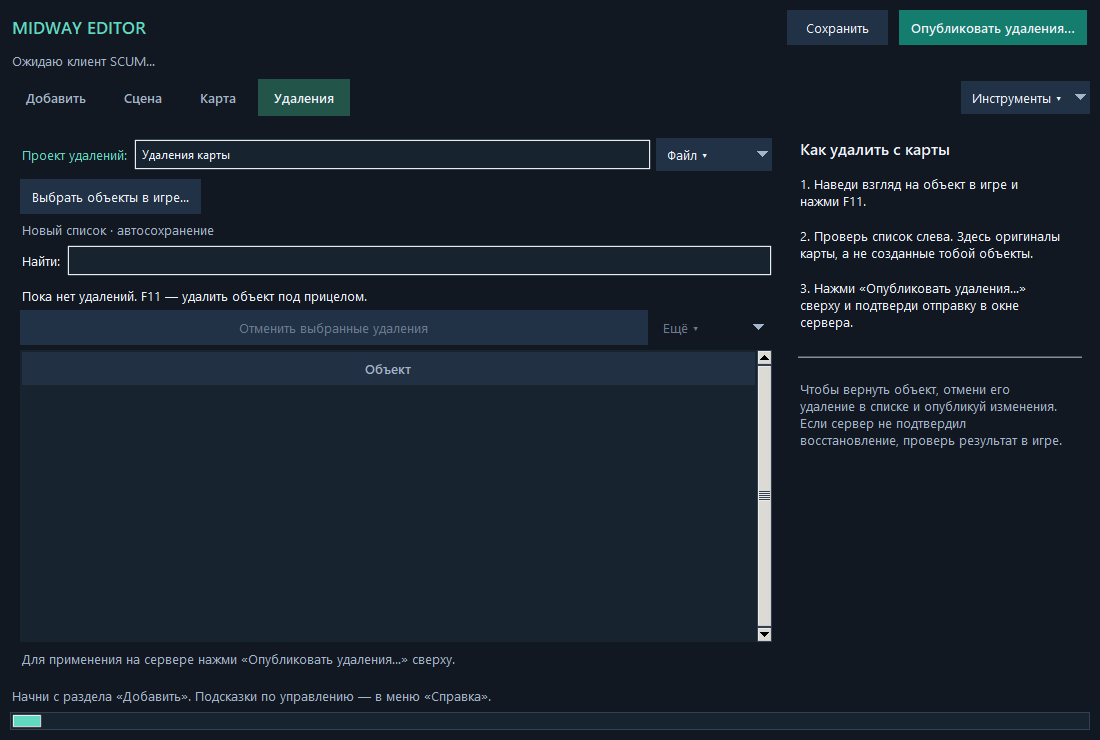
In Add, select a model and press F10. F6 captures the aimed item; Ctrl+F6 captures a building. Select authored objects in Scene; exact coordinates are in object settings. Map: W/E/R move, rotate, scale; Ctrl+C/V/D copy, paste, duplicate; Ctrl+Z/Y undo/redo. Ctrl+S saves locally. Publishing sends the desired state to the selected server. Read the result; if uncertain, reconcile state before another write. Original map deletions use a separate list. To restore, undo the deletion and publish the list.
Account scenes and expired access
Published scenes are automatically copied from the connected server module into the administrator’s account. Unpublished local drafts are not uploaded. Expiry or revocation disables the editor without deleting data; account scene downloads remain available. New editor leases last at most 15 minutes; previously issued leases may last up to 6 hours. Software on a user-controlled PC cannot be made impossible to modify.
6. SCUM updates, backups and rollback
Check editor updates under View → Editor updates. Save your project and close game and editor before installation. Client and server updates are separate operations. After a SCUM update, wait for a compatible package: never edit the allowed SHA or disable build checks. Back up files and Saved before server updates; upload the exact prepared package with the server stopped. Restore a consistent backup if needed; never mix old and new DLLs. After startup, test publishing, second-player visibility, reconnect and restart persistence.